 ProMapRanker
How to Claim Your Business on Google in 2026

Hi, I'm Md Shihab Mia, founder of ProMapRanker.com. You’re here because you want to know how to claim your business on Google, and in 2026, it remains one of the most fundamental steps for local online visibility.
Claiming your business on Google means taking ownership of your Google Business Profile (GBP), allowing you to manage how your business appears on Google Search and Maps. To do this, you either create a new profile if one doesn't exist, or you request ownership of an existing profile. Once claimed and verified, you gain full control to update your business information, engage with customers, and access crucial performance insights, directly impacting your ability to show up on Google Maps and attract local customers.
Why is Claiming Your Google Business Profile Essential in 2026?
Claiming your Google Business Profile is critical for local visibility, allowing your business to appear prominently on Google Search and Maps. It gives you direct control over your online presence, enabling you to manage information, engage with customers, and leverage valuable analytics to drive growth in an increasingly competitive digital landscape.
In 2026, a verified and optimized Google Business Profile isn't just a nice-to-have; it's a non-negotiable asset for any local business. Consider these points:
- Dominant Local Search Visibility: Your GBP is the primary vehicle for appearing in the coveted Google Map Pack, which drives a significant portion of local search traffic. Without a claimed profile, your business is virtually invisible to local customers actively searching for your services.
- Trust and Credibility: A complete and verified profile signals legitimacy to both Google and potential customers. Businesses with claimed profiles are often perceived as more trustworthy and professional.
- Direct Customer Engagement: The GBP allows customers to find your address, call you directly, visit your website, read and leave reviews, and even ask questions. This direct line of communication is invaluable.
- Powerful Analytics: Once claimed, you gain access to insights on how customers find your business, where they come from, and what actions they take (calls, website visits, directions requests). These analytics are crucial for understanding your audience and refining your local SEO strategy. According to Google's own data, businesses with complete Business Profiles are 2.7 times more likely to be considered reputable.
How to Claim a *New* Business on Google Maps and Search
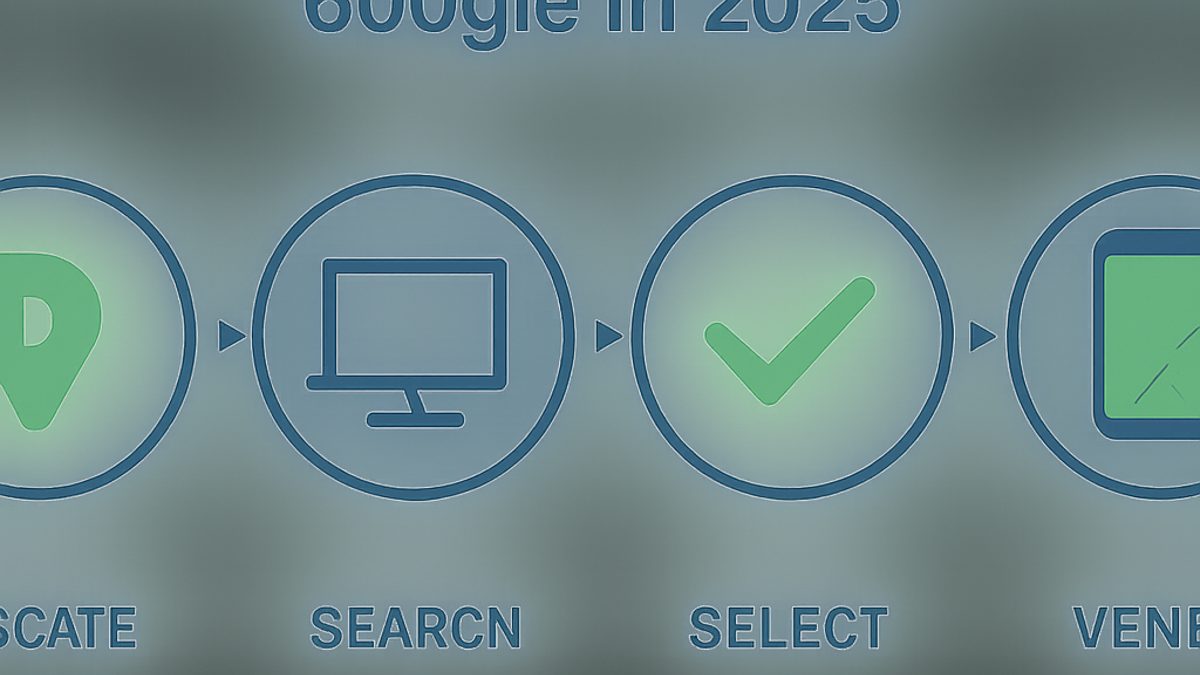
To claim a new business on Google, you'll first create a Google Business Profile, providing accurate business details like name, address, phone, and website. After entering your information, Google will prompt you to verify your ownership through various methods to ensure the legitimacy of your listing and grant you full management access.
If your business is genuinely new to Google and doesn't have an existing listing (even an auto-generated one), here's the step-by-step process to create and claim it:
- Go to Google Business Profile Manager: Navigate to business.google.com. You'll need a Google account to proceed.
- Search for Your Business: In the search bar, type your business name.
- If your business appears, select it. This means a profile might already exist, which we'll address in the next section.
- If it doesn't appear, you'll see an option like "Add your business to Google" or "Create a business with this name." Click on this.
- Enter Your Business Name: Provide the exact legal name of your business.
- Choose Your Business Category: Select the most accurate primary category that describes your core service or product. This is critical for local search relevance. For example, "Restaurant," "Dentist," "Plumber." You can add more categories later.
- Do You Want to Add a Location Customers Can Visit?:
- Yes: If you have a physical storefront, office, or location where customers visit, select "Yes" and enter your full business address. This is common for retail stores, clinics, and restaurants.
- No: If you're a service-area business (SAB) that serves customers at their location (e.g., plumbers, electricians, mobile pet groomers) or an online-only business, select "No." You'll then specify your service areas. For SABs, it's crucial to hide your street address from the public listing to avoid confusion, which Google allows.
- Enter Service Areas (if applicable): For SABs, list the cities, counties, or regions you serve. Be specific but not overly broad.
- Add Contact Information: Provide your business phone number and website URL. If you don't have a website, Google offers a basic free site builder, but a professional site is always recommended.
- Stay Updated: Google will ask if you want updates and recommendations. It's generally good to opt-in for important notifications.
- Finish and Verify: After entering all details, you'll be prompted to verify your business. This is the crucial step that grants you management access.
How to Verify Your Google Business Profile in 2026
Verifying your Google Business Profile confirms you are the legitimate owner, granting full control over the listing and enabling it to appear on Google Search and Maps. Google offers several verification methods, including phone, text, email, video recording, or postcard, with the available options depending on the business type, category, and Google's internal assessment of your business's eligibility.
Verification is Google's way of ensuring that only legitimate business owners or authorized representatives manage a Business Profile. Without verification, your profile won't be fully active, limiting its visibility and your ability to optimize it for local search. Here's a breakdown of common verification methods in 2026:
Common Google Business Profile Verification Methods:
- Phone or Text (Instant to a Few Minutes):
- How it works: Google sends a verification code via automated call or text message to the phone number associated with your business.
- Best for: Businesses with a publicly listed, easily accessible phone number. This is often the quickest method.
- Tip: Ensure the phone number listed on your GBP is one you can immediately access.
- Email (A Few Minutes to a Few Hours):
- How it works: Google sends a verification code to an email address associated with your business domain (e.g., [email protected]).
- Best for: Businesses with a professional email address matching their website domain.
- Tip: Generic email addresses like Gmail, Outlook, or Yahoo might not be accepted.
- Video Recording (Up to 5 Business Days):
- How it works: You record a short video (typically 1-2 minutes) demonstrating proof of your business location, equipment, and management access. This often involves showing your storefront, business signage, address, and then walking inside to show employees, equipment, or point-of-sale systems.
- Best for: Businesses that cannot use phone, text, or email, or those needing a more robust verification. It's increasingly common for service-area businesses.
- Tip: Ensure good lighting and clearly show identifying features. Google provides specific instructions on what to include.
- Postcard by Mail (Up to 14 Business Days):
- How it works: Google mails a postcard containing a unique verification code to your business's physical address. You then enter this code into your Business Profile Manager.
- Best for: Businesses with a physical location that is consistently staffed to receive mail. It's a fallback if other methods aren't available.
- Tip: The postcard can sometimes take longer due to postal services. Do not edit your business name or address while waiting, as this can cancel the postcard request.
- Instant Verification (Rare):
- How it works: If you've already verified your business website with Google Search Console, Google might automatically verify your GBP.
- Best for: Businesses with a long-standing, verified online presence.
- Bulk Verification (For 10+ Locations):
- How it works: For businesses with ten or more locations, you can apply for bulk verification through a specific form.
- Best for: Multi-location enterprises. ProMapRanker supports multi-location local SEO and can help manage these at scale.
Verification Timeline Comparison:
| Method | Typical Timeframe | Ideal Use Case |
|---|---|---|
| Phone/Text | Instant - 5 minutes | Quickest, for accessible phone numbers |
| 5 minutes - 1 hour | Professional domain email available | |
| Video Recording | 1 - 5 business days | SABs, physical locations, when other methods fail |
| Postcard by Mail | 7 - 14 business days | Physical addresses, fallback method |
| Instant | Immediate | Existing Google Search Console verification |
| Bulk (10+ locations) | Varies (can be weeks) | Large multi-location businesses |
Once you've selected a method and provided the necessary information, Google will review it. You'll receive a notification when your profile is successfully verified, granting you full control over your Google Business Profile.
What if My Business is Already Listed or Claimed on Google?
If your business is already listed but unclaimed, you can claim it by searching for it on Google Business Profile and selecting "Manage now," then following the verification prompts. If it's already claimed by someone else, you'll initiate an ownership request, which typically involves contacting the current owner or proving your legitimate control to Google after a waiting period.
It's very common to find that your business already has a listing on Google, even if you didn't create it. Google often generates profiles based on public records, directories, or user contributions. The process for claiming an existing listing differs based on whether it's unclaimed or already claimed by someone else.
Scenario 1: Your Business is Listed but Unclaimed
This is the simpler of the two scenarios. Google has a profile for your business, but no one has taken ownership of it yet.
- Search for Your Business: Go to business.google.com and type in your business name.
- Select Your Business: If it appears, click on it.
- Look for "Own this business?" or "Manage now": You'll typically see a button or link that says something similar. Click this to initiate the claiming process.
- Follow Verification Steps: You'll then proceed with one of the verification methods discussed above (phone, text, email, video, or postcard). Google needs to confirm you are indeed authorized to manage the listing.
Once verified, the profile will be linked to your Google account, and you'll gain full editing and management capabilities.
Scenario 2: Your Business is Already Claimed by Someone Else
This scenario is more complex, but still resolvable. It means another Google account has already claimed and verified the Business Profile. This could be a former employee, a previous marketing agency, or even a competitor in rare cases.
- Search for Your Business: Go to business.google.com and search for your business name.
- Select Your Business: When it appears, click on it.
- Initiate Ownership Request: Instead of "Manage now," you'll likely see a message indicating the profile is already claimed, often with a hint of the email address that claimed it (e.g., "This Business Profile has already been claimed. The owner has access to this profile. You can request access from the current owner."). Click on the "Request access" or "Request ownership" option.
- Fill Out the Request Form: You'll be asked to provide details, including your name, contact information, your relationship to the business (e.g., owner, manager), and the desired level of access.
- Google Contacts Current Owner: Google will then send an email to the current owner, notifying them of your request and giving them 7 days to respond.
- If the Current Owner Responds and Grants Access: Great! You'll receive an email confirming your access.
- If the Current Owner Responds and Denies Access: You'll be notified, and you might need to pursue alternative dispute resolution with Google support.
- If the Current Owner Does Not Respond (after 7 days): You will likely receive an email from Google informing you that you can now proceed to "Verify your ownership" yourself. At this point, you'll be able to use one of the standard verification methods (phone, text, email, video, postcard) to prove you are the legitimate owner.
The key here is patience and providing clear proof of your legitimate connection to the business. Having documents like business registration, utility bills, or a lease agreement can be helpful if Google requires further evidence.
Optimizing Your Google Business Profile After Claiming and Verification
After claiming and verifying, optimizing your Google Business Profile is crucial for maximizing local search visibility and customer engagement. This involves completing all profile sections, adding high-quality photos, actively managing reviews, posting regular updates, and ensuring consistent information across the web to attract more local customers and outrank competitors.
Claiming and verifying your GBP is just the starting line. To truly leverage its power and show up on Google Maps effectively, you need to optimize it thoroughly. Think of your GBP as your new local landing page; every field is an opportunity to provide Google with more data about your business and convince potential customers to choose you. As ProMapRanker.com, we see the direct impact of these optimizations on local rankings daily.
Comprehensive GBP Optimization Checklist:
- Complete All Business Information:
- Name, Address, Phone (NAP): Ensure it's 100% consistent with your website and other online directories. Inconsistencies confuse Google and hurt your local ranking.
- Categories: Select one primary category that best describes your core business, then add up to nine secondary categories. Be specific. For example, a "Dentist" might also be a "Cosmetic Dentist" and "Pediatric Dentist."
- Hours of Operation: List accurate regular hours and update for holidays or special events.
- Service Areas: If you're a service-area business, clearly define the regions you serve.
- Website: Link to your primary business website.
- Appointment Link (if applicable): Provide a direct link for booking appointments.
- Add High-Quality Photos and Videos:
- Exterior: Help customers recognize your storefront.
- Interior: Show off your ambiance and facilities.
- Product/Service Photos: Showcase what you offer.
- Team Photos: Build trust and personalize your business.
- Videos: Short, engaging videos (under 30 seconds) can significantly boost engagement.
- Impact: Businesses with photos get 42% more requests for directions and 35% more clicks to their websites than businesses without photos, according to Google Business Profile Help. Aim for at least 15-20 high-quality photos.
- Craft a Compelling Business Description:
- Use all 750 characters to describe your business, unique selling propositions, and services.
- Naturally include relevant keywords, but avoid keyword stuffing. Focus on readability and value for the customer.
- Utilize Google Posts Regularly:
- Google Posts are mini-blogs within your GBP, allowing you to share updates, offers, events, and product announcements.
- Post at least once a week to keep your profile fresh and engage with potential customers. Posts can boost visibility for specific keywords.
- Actively Manage Reviews and Q&A:
- Respond to All Reviews: Positive or negative, respond promptly and professionally. Aim to respond to 100% of reviews within 24-48 hours. This shows you value customer feedback.
- Encourage New Reviews: Politely ask satisfied customers to leave reviews.
- Monitor Q&A: Answer customer questions quickly and accurately. You can also seed your own FAQs to provide proactive information.
- Use Attributes:
- Google provides various attributes (e.g., "wheelchair accessible," "free Wi-Fi," "outdoor seating"). Select all relevant ones to give customers more information.
- Add Products/Services:
- Detail your offerings in the Products or Services section with descriptions, prices, and photos. This helps Google understand your business better and can appear directly in search results.
- Ensure NAP Consistency (Citations):
- Verify your Name, Address, and Phone number are identical across all major online directories (Yelp, Facebook, Yellow Pages, industry-specific sites). These are called citations and are a key local SEO ranking factor. Aim for consistency on at least 20+ authoritative directories relevant to your industry.
For a detailed breakdown of each optimization step, check out our guide on How to Optimize Your Google Business Profile for Local SEO. If you're unsure where to start or need an expert eye, get a Free GBP Audit from ProMapRanker to identify immediate optimization opportunities.
Monitoring Your Local Rank with Geo-Grid Tools
Even after optimization, local search rankings are dynamic, fluctuating based on proximity, relevance, and prominence. Monitoring these shifts with geo-grid local rank trackers provides a precise, unbiased view of your business's visibility across specific geographic areas, revealing opportunities for targeted SEO improvements that traditional rank tracking misses.
Once your GBP is claimed, verified, and optimized, the work isn't over. Local SEO is an ongoing process because Google's algorithm constantly evaluates businesses based on user location, search queries, and real-world factors. Traditional rank trackers that provide a single "national" or "city-wide" ranking for a keyword are insufficient for local businesses.
This is where geo-grid local rank tracking, like what we offer at ProMapRanker.com, becomes indispensable:
- The Proximity Factor: Google heavily weights the searcher's proximity to the business. Your rank can vary dramatically even a few blocks away. A geo-grid scan simulates searches from multiple specific points on a map. For example, a 7x7 grid scan around your business will show your ranking for a target keyword from 49 different locations, typically extending up to 5-10 miles in each direction.
- Heatmap Visualization: Geo-grid tools generate heatmaps that visually represent your local rankings. Red areas indicate low visibility (poor ranking), while green areas show strong visibility. This immediately highlights where you're strong and where you need improvement.
- Unbiased Data: Unlike manual searches that are influenced by your browsing history and location, geo-grid tools provide objective data, showing how potential customers across your service area actually see your business in the Map Pack.
- Competitive Analysis: You can track your competitors' local rankings on the same geo-grid
See where you really rank - block by block
ProMapRanker scans Google Maps across a grid of your service area. Simple monthly plans from $19, white-label on every plan.
Start free